

Why "How to Access NasaVPN" Is Trending in Search
A cluster of queries keeps showing up in search data: "how to access nasa vpn," "how to connect to nasa vpn," "nasa limited access vpn," and "is nasa vpn not available on holidays?" Read together, they describe one experience — someone downloaded the client, expected a connection right away, and instead hit a screen that looked like restricted access.
What "Limited Access" Usually Means
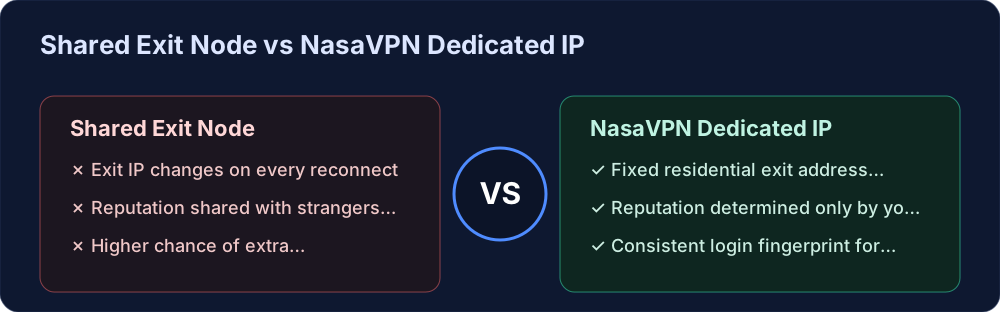
NasaVPN is built around dedicated IP infrastructure, not shared public exit nodes. That design choice is exactly why a first-time connection can look different from a typical shared-node accelerator.
Your account is being matched to a fixed exit address
Instead of routing you through whichever public server has spare capacity, the client assigns your account a dedicated IP address pulled from real residential ISP ranges. The first connection sometimes takes a few extra seconds while that assignment completes — it can feel like the connection is stuck when it is actually provisioning your exclusive exit.
Regional capacity, not a blanket block
Some searches assumed access was blocked entirely ("nasa vpn not available on holidays," "nasa limited access vpn"). In most cases this reflects regional node capacity during peak hours rather than a full outage — switching the target region in the client settings resolves it.
Step-by-Step: Connecting With a Dedicated IP
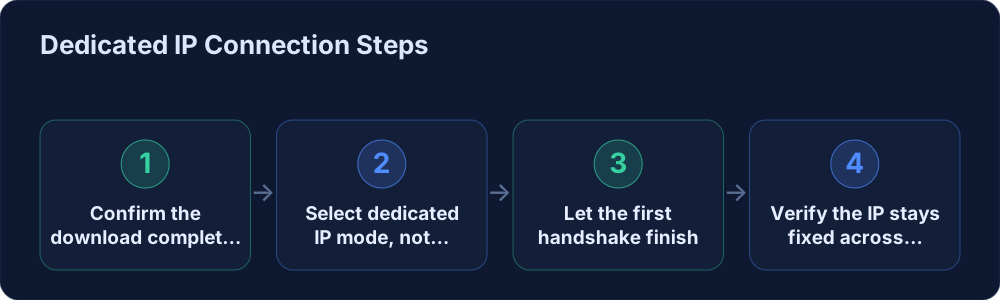
Step 1 — Confirm the download completed correctly
"What do I do when I have nasuvpn downloaded" is a common next question after installation. Open the client once, sign in with your account, and check that it recognizes your subscription tier before touching any connection settings.
Step 2 — Select dedicated IP mode, not auto-optimal
In the connection settings, choose the dedicated IP option rather than the default "best node" mode. This is what binds your account to a fixed residential exit address instead of a shared data-center pool.
Step 3 — Let the first handshake finish
The first connection after switching modes can take longer than later ones, since the system is reserving your exclusive exit IP. Avoid reconnecting repeatedly during this step — that resets the assignment process.
Step 4 — Verify the IP stays fixed across reconnects
Disconnect and reconnect two or three times, and confirm the displayed exit IP is identical each time. A dedicated IP that changes on every reconnect defeats the purpose of the setup.
When the Connection Still Won't Go Through
| Symptom | Likely Cause | Fix |
|---|---|---|
| Client opens but never connects | Selected region has no available dedicated IP slot | Switch to a nearby region in settings |
| Connects, but exit IP changes each time | Still on auto-optimal mode instead of dedicated IP | Re-select dedicated IP mode explicitly |
| Works, then drops mid-session | Local network interruption without kill switch enabled | Enable the kill switch in advanced settings |
| "Not available" message appears | Temporary regional capacity limit, not a full outage | Retry after a few minutes or pick another region |
Why Cross-Border Teams Ask for "Exclusive IP" Specifically
Search terms like "exclusive for cross-border" point to a clear underlying need: teams running cross-border e-commerce, AI tools, or overseas operations don't want their login environment to look like a shared exit used by strangers. A dedicated IP tied to one account gives platforms a consistent login fingerprint, which is exactly what stable access to tools like ChatGPT and Claude depends on.
Common Typos: "Nasuvpn," "Naasa VPN," and Other Spellings
Searches for "nasuvpn," "nasuvnp," "how to get on naasa vpn," and "nasa vpn marshall" are typos and regional autocomplete variants of the same product name. If any of these led you here, you are looking for the correct client — NasaVPN — and the setup steps above apply the same way regardless of which spelling got you to this page.
🚀 Try NasaVPN now — a dedicated native residential IP built for cross-border teams, with stable access to ChatGPT, Claude, and Netflix.