iPhone Installation Guide for NasaVPN — No Invitation Code Needed (Lite Version)
Cập nhật ngày 2026-05-29 10:30:51
# Hướng Dẫn Cài Đặt

Many iOS users get intimidated by that big “invitation code” button on TestFlight when installing the app. Key point: installation needs NO invitation code at all! Just follow the two-step method below for a hassle-free, one-tap install.
Fast iOS Install Guide (Skip the Invitation-Code Trap)
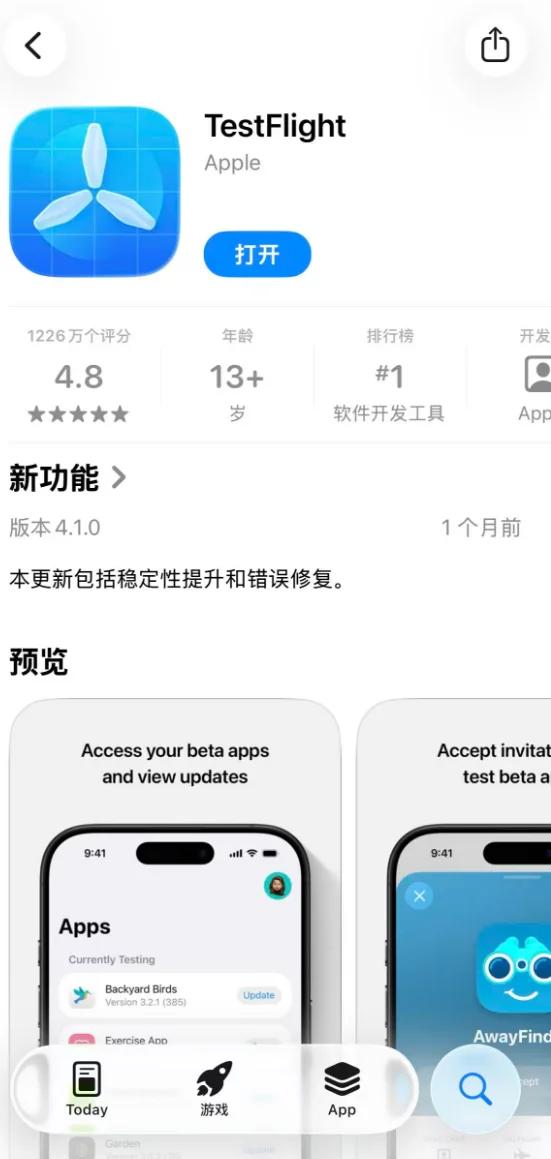
Step 1: Get Ready (just download, do not open it yet)
Open the App Store and download “TestFlight”.
Note: After installing TestFlight, go straight back to your home screen — do NOT open it to look for an “invitation code”! That button is for private-beta developers; we use the more advanced public-beta mode.
Step 2: Activate the Install (the key step)
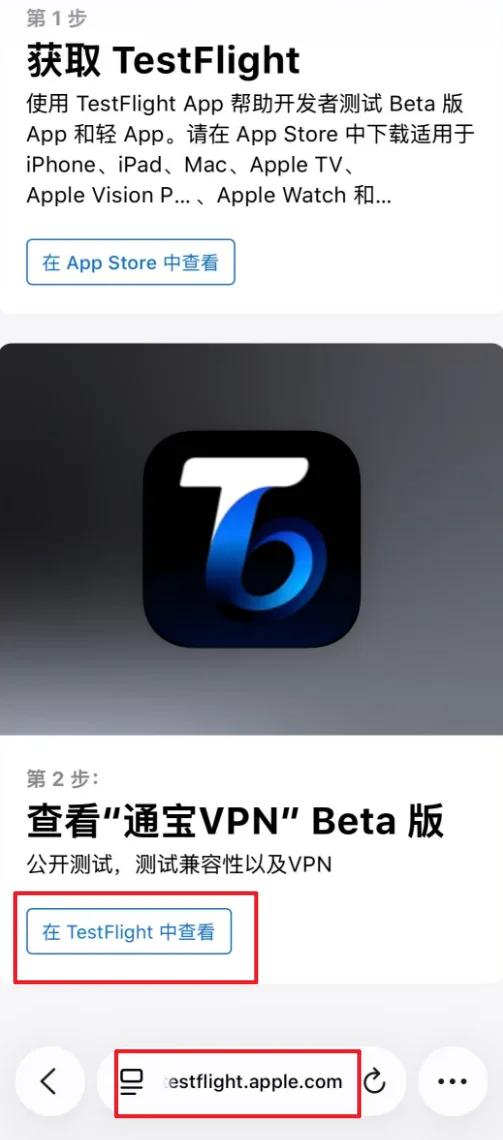
Open Safari (the built-in iPhone browser) and tap or paste the following exclusive public-beta link:
https://testflight.apple.com/join/7q1QbK7T
Step 3: One-Tap “Accept”
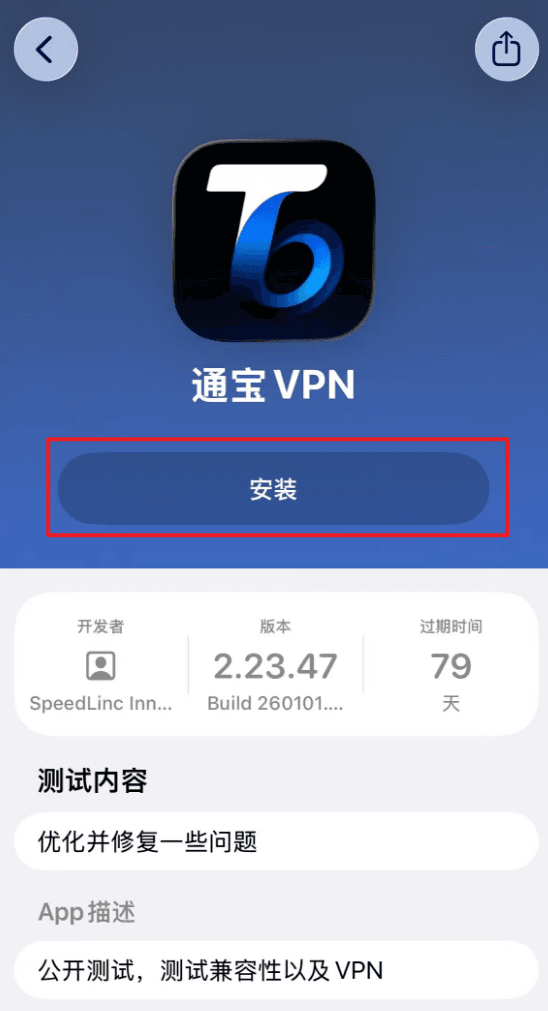
After opening the link, scroll down and tap the “Get TongbaoVPN” button; you will be taken to the TestFlight app. Wait for the TongbaoVPN download page to load, then tap “Install”. If the download page does not load, close TestFlight in the background and repeat steps ① and ②.
[Notes]
① The iOS public-beta build is time-limited — please check TestFlight for the latest TongbaoVPN version and keep it up to date, otherwise it may stop working;
② Do not delete the TestFlight app on your iPhone; removing it may prevent normal updates and use;
③ Prices for purchase and renewal on iPhone are higher than on other platforms. To buy or renew, please use Mac, Android, or Windows. With the same account, membership purchased or renewed on other platforms will sync to iPhone.
Chưa cài đặt NasaVPN?
Nhân lõi mới nhất — đường truyền riêng IP / máy chủ riêng xuyên biên giới, sẵn sàng trong vài phút
目录